Updates from USB media
Firmware update
- Insert a USB drive into your computer.
- Copy firmware update image .swu file to root directory in USB drive.
- Power off display.
- Eject USB drive and insert it into display.
- Power on display.
Display firmware is updated automatically. If the USB drive has several compatible firmware update image files, select the desired image from command prompt.
- After update is done, remove USB drive and reboot display using power switch.
Custom logo update
- Insert a USB drive into your computer.
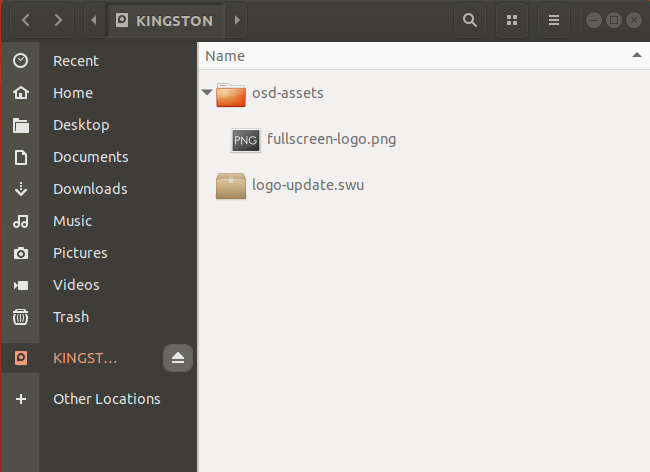
- Copy the logo update image logo-update.swu to root directory in USB drive.
- Make a new directory called \"osd-assets\" if it doesn\'t already exist.
- Copy your new logo \"fullscreen-logo.png\" to \"osd-assets\" directory. Your USB drive directory structure should now look like this:
- Power off display.
- Eject USB drive and insert it into display.
- Power on display.
Custom logo file is copied to the display. If there are several compatible firmware update files on the USB drive, select the logo update from command prompt.
- After update is done, remove USB drive and reboot display using power switch.
Custom logo resolution should be 1920x1080 to ensure visual quality.