Adjust The Tracking
Due to the camera-based nature of MultiTaction\'s Clearsight tracking, there are extra parameters to adjust your tracking based on your needs. See below for calibration and tracking adjustment procedures.
Geometry Calibration
MultiTaction Cells utilize a camera matrix for tracking objects on the Cell display surface. During transport and installation, the physical position of the cameras may move a few millimetres if, for example, there was rough handling during transit. This will require a recalibration of the geometrical alignments of the cameras. Note that finger tracking usually works even without geometry calibration, but for marker tracking it is often necessary.
Calibration procedure:
- Connect a usb mouse & keyboard to the Cell.
- Switch to the on-screen display (OSD) by wiggling the mouse.
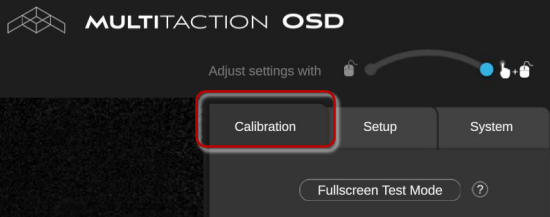
- In the OSD, go to the Calibration tab.
- Go to the Geometry Calibration pane and tap the Calibrate button to start the calibration procedure.
- Wait up to a minute for the calibration to complete.
- When the calibration is complete, tap the Save button. Tip: You may need to scroll to the bottom of the Calibration tab to see the Save button.
- To ensure everythings saves properly, go to the System tab and perform a soft reboot. Do not reboot with the power switch as your calibration & other changed settings may not be saved.
- To test your calibration, open OSD, then drag your finger across the length of the display to ensure tracking is smooth between the camera boundaries.
Note
If the room is brightly lit, uses incandescent or other IR-generating bulbs, or if there is external sunlight, you may need to block those light sources for best calibration:
If your displays are already connected to an application PC, you can perform geometry calibration for all displays at once with our SiteManager 2.0 utility (MT556 and later displays). https://apps.multitaction.com/sitemanager/index.html
Adjust the Tracking Parameters
After the camera geometry calibration is complete (see section 8.4.1), you can test the touch tracking and, if necessary, adjust the touch tracking parameters. Your goal is to make touch tracking as accurate as possible.
There are separate tracking parameters for different tracking features: fingers, markers and pens. The configuration procedure is the same in each case:
- Display the OSD and tap the Calibration tab.
|
- Go to the pane for the tracking feature you want: Fingers, Markers or Pens.
- Turn on the tracker by moving the On-Off slider to On. For example:

|
- By default, the tracking parameters are hidden. Tap the Edit Settings button to display the available parameters
- Adjust the parameters as required. For parameter details, see the following sections.
- (Optional) To declutter the OSD, tap the Hide Settings button to hide the tracking parameters for the current tracking feature.
- Tap the Save button to save the new tracking parameters. If you do not save, any changes to the tracking parameters will be lost when the tracking computer next restarts. Scroll to the bottom of the Calibration tab to see the Save button.
Finger tracking parameters
The most important tracking parameters for fingers are listed below.
- Minimum contrast defines how bright a fingertip should be, compared to its immediate surroundings. Lower this value to make tracking more sensitive; increase this value to make tracking less sensitive. The typical value is 0.04. You rarely need to change this value.
- Minimum brightness is the most important parameter for finger detection sensitivity. It defines how bright finger tips are expected to be. Due to subtle differences between the Cells,you may need to adjust this parameter from its default value. Lower this value to make tracking more sensitive; increase this value to make tracking less sensitive. The typical value is between 0.04 and 0.09.
- Detection radius defines the expected radius of a fingertip, measured in camera pixels. This parameter is almost always set to 8. The useful range is between 6 and 9. Smaller values imply a user has smaller fingers; larger values imply larger fingers. Increasing this value makes tracking more sensitive, but you rarely need to adjust this parameter.
The following tracking parameters for fingers are also available. You rarely need to adjust these parameters.
- Sensitivity determines how readily possible fingertips are classified as fingers. The useful range for this parameter is between 1.0 and 1.5. Increasing this value makes tracking more sensitive, but you rarely need to adjust this parameter.
- Keep-alive defines how long lost fingers are maintained in the finger list (measured in frames). The useful range for this parameter is from 2 to 4 frames. Increasing this value will reduce the tracking gaps when a finger can be lost, but will also increase latency when fingers are lifted from the screen.
- Position filter strength filters the raw fingertip coordinates to reduce unwanted jitter in reported tracking coordinates. The filter only applies to slow hand movements. Increasing the filter strength will make tracking less jittery, but will also increase latency ie, tracking is slightly slower. The typical range for this parameter is between 0.9 and 1.0, but in some cases you may need to set it to zero to eliminate filtering completely.
- Position filter threshold defines the effective radius of the position filter. Lower values result in less filtering and faster tracking; higher values result in more filtering so tracking is smoother, but with higher latency ie, tracking is slightly slower. The typical range is between 20 and 50.
- Lens compensation is an internal parameter for compensating certain lens effects. You rarely need to change this value.
- Background keep determines how fast the background model adapts to screen changes caused by touch events. Lower values mean faster adaptation. A value of 1 means no adaptation ie, the background model is never updated.
Note: The 'background model' refers to the Cell cameras' default view of the touch screen when there is no touch activity. The model also takes account of ambient light conditions.